What This Add-On Does
BIMquants Lite stores a bill of quantities inside the current Archicad project and keeps it tied to the model where needed.
It lets you:
- Organize work into categories.
- Create items with code, description, unit, quantity, price, and total.
- Attach quantities to Archicad elements through linked GUIDs.
- Sync linked quantities back to the current model state.
- Export and import the quantity database as SQL or XLSX.
- Inspect which items are linked to the currently selected element.
Where To Open It
The add-on registers these commands in Archicad:
- Show BIMquants Lite Palette
- Element Links Explorer
- Sync All Quantities
- Import from SQL
- Import from Excel
- Export to XLSX
- Export to SQL
Main Screen Layout
The main BIMquants Lite view is split into two panes:
- The left pane shows the selected category's items.
- The right pane shows the quantities for the selected item.
At the top there is a category drop-down and a description field.
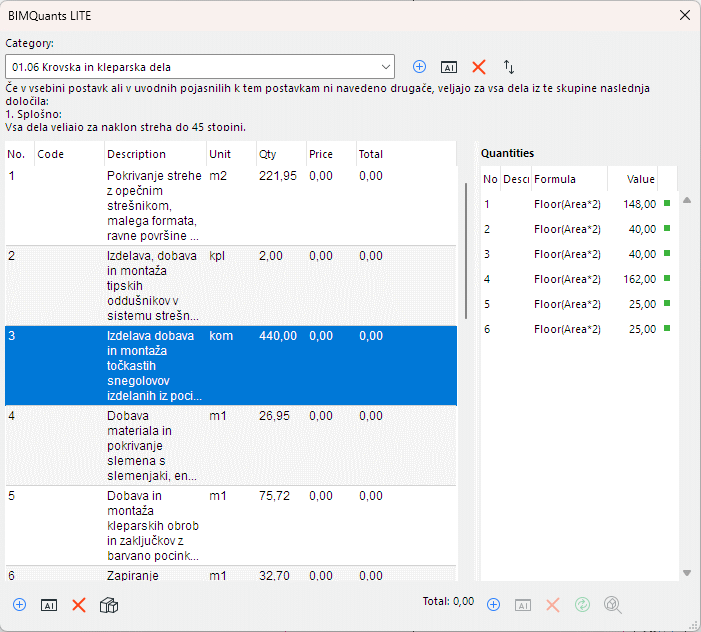
Items table columns
- Sort order
- Code
- Description
- Unit
- Quantity
- Price
- Total
Quantities table columns
- Sort order
- Description
- Value
- Status
The status column shows a colored dot for linked quantities:
- Green — linked value is up to date.
- Orange — linked value is out of date.
- Red — linked element is missing.
Working With Categories
Use the category buttons to manage the category list:
- Add Category opens a dialog with code, title, and description.
- Edit Category changes the currently selected category.
- Delete Category removes the current category after confirmation.
- Reorder Categories opens the reorder dialog and then reloads the list.
Working With Items
Use the item buttons to manage item rows in the current category.
An item has these fields: Code, Description, Unit, Price.
The item dialog can also create a first quantity automatically. When adding an item, the add-on can use the currently selected Archicad element as a source. If a linked element is present, a variables popup lets you pick formula variables specific to that element type. If more than one element is selected, all selected elements must be of the same type.
- Double-clicking an item row opens the edit dialog.
- Rows can be reordered by dragging from the sort-order column. The new order is persisted immediately.
- Clone Item duplicates the selected item (code, description, unit, and price) into the same category. No quantities are copied. The cloned item is appended and selected automatically.
The category total updates automatically whenever item totals change.
Working With Quantities
Use the quantity buttons to manage the selected item's quantities. A quantity has a description, a formula, and a calculated value (read-only).
The description field supports two replacement tokens that are resolved at display time:
| Token | Replaced with |
|---|---|
#ID | The Archicad element ID (the text shown in the element's label in the model) |
#LOC | The story name for floor-plan elements; the section or elevation window title for section/elevation elements |
When the linked element is set, a variables popup appears. Selecting an entry inserts the corresponding formula variable or function call into the formula field.
Quantity actions
- Add Qty — creates one or more quantities for the current item.
- Edit Qty — changes the selected quantity.
- Delete Qty — removes selected quantities. Multiple rows can be selected and deleted in one step. The Delete key also works when the list has focus.
- Sync Qty — recalculates linked quantities and writes updated values back to the database.
- Zoom Qty — zooms to the linked Archicad element and selects it in the view.
Status indicators are computed in the background so the panel stays responsive. Double-clicking a row opens the edit dialog. Rows can be reordered by dragging from the sort-order column.
Writing Quantity Formulas
Every quantity holds a formula that is evaluated against a linked Archicad element (or without one when the quantity is unlinked). The result becomes the quantity value.
Basic arithmetic
A formula can be any mathematical expression:
3.5 * 2 + 1.2
(Length * Width) / 2
Variables
When a quantity is linked to an element, the formula can reference named variables specific to that element type. Use the variables popup (fx button) in the formula dialog to insert them — you never need to type names manually.
| Element | Example variables |
|---|---|
| Wall | Volume, CoreVolume, Area, Length, Thickness, MaxHeight |
| Slab | Volume, CoreVolume, Area, Thickness, CoreThickness |
| Roof | Volume, Area, ProjectionArea, RidgesLength, EavesLength |
| Beam | CoreVolume, Length, Width, Height, ProfileArea |
| Column | CoreVolume, Height, Width, ProfileArea |
| Stair | Volume, Area, Height, NumOfRisers, NumOfTreads |
| Window / Door | Area, Width1, Height1 |
| Zone | Area, Perimeter, Volume, Height, NetArea, CalcArea |
| Railing | Length, Height, Area |
| Curtain Wall | Length, Height, Area |
| Fill / Line / PolyLine | Area / Length |
A profiled Wall, Beam, or Column also exposes ProfileWidth and ProfileHeight — the bounding-box dimensions of the cross-section.
Functions
Functions let you reach into the internal structure of an element. They are always called with parentheses.
Composite elements — skin quantities
Walls, Slabs, and Roofs built from a composite structure expose a volume and projected area for each skin layer. Address a skin by its 1-based index or by the building material name. If the composite contains multiple skins with the same material, their values are summed automatically.
SkinVolume(1)                    // volume of the first skin layer
SkinArea(2)                      // projected area of the second skin layer
SkinVolume('Concrete')           // sum of volumes for all Concrete skins
SkinArea('Thermal insulation') // sum of areas for all matching skinsSkinVolume or SkinArea from the popup, the Composite Skin picker opens automatically and inserts the chosen material name.Profiled elements — region area and volume
Profiled Walls, Beams, and Columns expose the cross-sectional area of each named region and a derived volume. Multiple regions with the same material are accumulated.
ProfileRegionArea('Steel')       // cross-section area of the named region
ProfileRegionVolume('Steel') // region area × element length (height for columns)Object and Window parameters
Parameter('Width') // access any GDL parameter by nameCustom element properties
Property('FireRating') // access any custom Archicad property by nameUnlinked quantities
Tick Unlinked (or Single Qty in the Qty dialog) to evaluate the formula without any element reference. This is useful for fixed allowances or manually entered values. Element variables are not available in an unlinked formula.
Viewing the result
The formula dialog shows a calculated value below the formula field. It updates as you type. If the formula contains an error, the field stays blank.
Linking Quantities To Model Elements
When you create a quantity from a selected Archicad element, the add-on stores the element GUID in the quantity record. This enables three important workflows:
- The quantity can be recalculated from the model.
- The status indicator shows whether the element still exists and whether the value is current.
- The Zoom Qty button jumps back to the element in the model.
If multiple elements are selected when creating an item or quantity, they all must be the same element type.
Element Links Explorer
The Element Links Explorer command opens a floating palette that answers the question: which bill-of-quantity items are connected to this element?
Select one Archicad element and the palette refreshes automatically, listing every quantity row that carries a link to that element. Each row shows:
- Cat. No. — the category code.
- Category — the category title.
- Item No. — the item code.
- Description — the item description.
Select a row and click Goto Item to open the main BIMquants Lite palette and navigate directly to that item.
If more than one element is selected the palette shows a message asking you to narrow the selection to a single element.
Sync All Quantities
The Sync All Quantities menu command recalculates every linked quantity across the entire project in a single operation. A progress dialog shows how many quantities have been processed and lets you cancel at any time. When the sync completes, the palette reloads automatically.
This is the fastest way to bring all derived values up to date after a large model change.
Import And Export
Export to XLSX
Writes the current database into an Excel workbook. The export dialog offers:
- Do not export prices
- Mark price fields as input (orange fill + bold)
- Lock all cells except price fields
The generated workbook contains a Recapitulation sheet and one sheet per category.
Export to SQL
Writes the complete SQLite database as a plain .sql dump containing the schema and all data.
Import from SQL
Loads a previously exported SQL file. The import dialog lets you choose a file and optionally skip quantities linked to Archicad elements.
Import from Excel
Reloads a workbook that was previously exported by Export to XLSX. The import reads categories and items and replaces the current database. Quantity rows are not imported.
Data Storage And Persistence
BIMquants Lite keeps its data in an in-memory SQLite database during the session and stores a serialized snapshot inside the Archicad project file. No external files are required.
The snapshot is saved automatically:
- when the project is closed,
- when the project is changed,
- and whenever the data becomes dirty and the add-on is idle.
The quantity database travels with the Archicad project file.
Practical Workflow
- Open the BIMquants Lite palette.
- Create or select a category.
- Add items for that category.
- Add quantities to each item.
- Link quantities to selected model elements when needed.
- Use Sync Qty after model changes.
- Export to XLSX or SQL for handoff, backup, or external review.
Notes And Limits
- Quantities linked to elements are only meaningful when the element GUID still exists in the project.
- Deleting items or quantities updates totals in the current database.
- Importing a SQL file overwrites all current data.
- Import from Excel reads only categories and items — not quantities.
- The import and export flows are based on the workbook and database structures defined in this add-on; files from other tools may not be compatible.